Take a selfie and create a unique Portrait for your Ministry ID. Tap the Ministry ID button on the bottom-left corner of the Map, then tap anywhere in the Portrait field to get started.Note: Portraits are never stored remotely on our servers. Harry Potter: Wizards Unite only stores these images on your device’s local storage. Uninstalling the app or resetting your device will permanently erase your Portrait from the Ministry ID. Support is unable to restore lost Portrait images.
Creating your Portrait
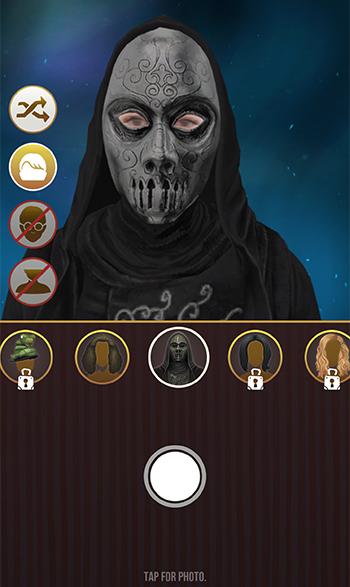
Select the Camera option to take an original photo. You must have camera permissions enabled so that you can take selfies with your phone’s camera. If you haven’t allowed camera permissions yet, you can go to the Settings page to update them.Portrait LensesBefore taking a photo, dress up your selfie with a Portrait Lens. Portrait Lenses are facial filters that add an AR effect to your image. Choose from a variety of lenses to add effects like hats, accessories, and clothing. Tip: For the best results, keep your phone upright and in-line with your face. If the Portrait Lens effect is not in the correct position, move out of the camera’s view, and back into the frame to reset it. When you’re ready, tap the shutter button towards the bottom of your screen to snap a photo.
 Filters, Frames, and StickersOnce you’ve taken your selfie, add a bit of extra flair with Filters, Frames, and Stickers.
 Tap "NEXT" to preview your Portrait. Once you’re satisfied, tap “CONFIRM” to add the Portrait to your Ministry ID. Sharing and DownloadingExcept for child accounts, players can share their Portraits with social media or other messaging apps. Tap the Share button to open your sharing options. Your phone will populate external applications where you can send your Portraits.Alternatively, you can download an image file of your Portrait to your device and share it directly to your favorite social media app. You must provide external storage permission so you can store game data on your device.
Last Portrait
The Last Portrait will bring up the most recent photo you captured and used for your Portrait. You can edit any Portrait Lenses and Filter, Frames, and Stickers from your Last Portrait as if it were a new Portrait. When you delete the app, the Last Portrait will no longer be retrievable.Note: You are unable to apply Portrait Lenses to stock images from the app. Portrait Lenses are only compatible with new photos you captured using your phone’s camera.
Using an existing image
Select the Stock option to select an image from the app. You are unable to add Portrait Lenses to stock images. However, you can still decorate them with Filters, Frames, and Stickers.
Unlocking new customisation items
Additional Portrait customisation items can be unlocked by increasing your Wizarding Level, as an Event reward, or in exchange for Gold. Items that are locked appear with a padlock. Tap a locked item to see the requirement to unlock it.
_-_-_-_-_-_-_-_-_-_-_-_-_-_-_-_-_-_-
Harry Potter: Wizards Unite Game GUIDE
哈利波特:巫師聯盟