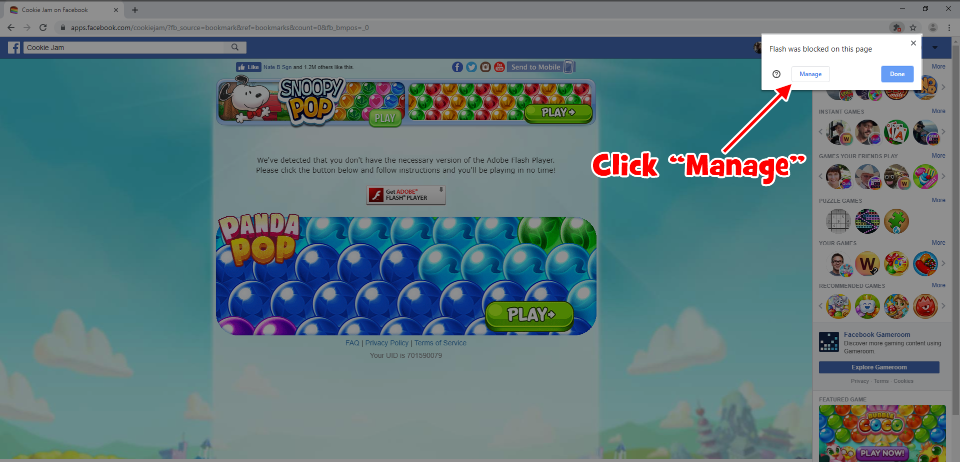
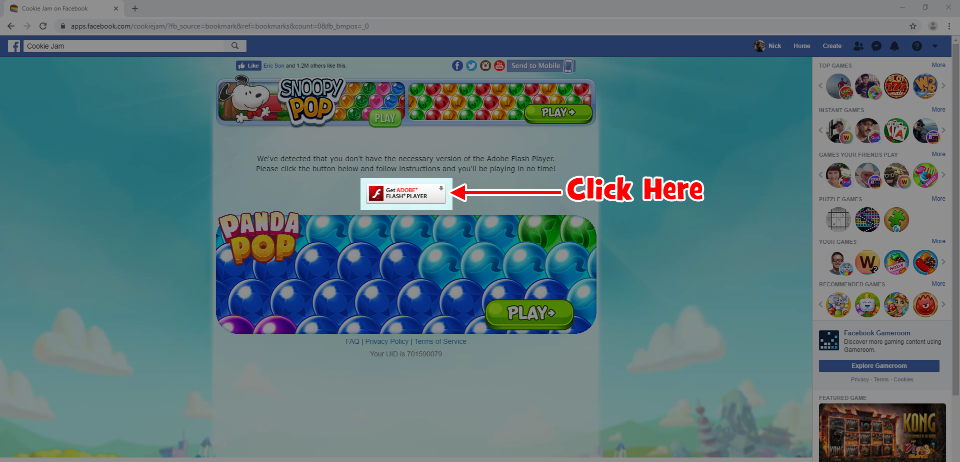
The version of Chrome Browser that you are currently using disables Flash automatically. Games like COOKIE JAM use Flash to load into your browser. In order to play, you will need to re-enable it. Don’t worry though, you should only need to do this once and we’ve provided a handy step-by-step guide below!Step 1: Click on the "Get Adobe Flash Player" button. Step 2: A message in the upper right hand corner of your browser’s address bar will appear. It will say "Plugin blocked". Click the error icon.
 Step 3: A box will pop up that says "Flash was blocked on this page". Click the button that says "Manage".
 Step 4: There will be an option that says "Block sites from running Flash". Click that option to re-enable Flash.
  After you select the option, the button will turn blue. It should look like this:
 Step 5: Next, click back to the tab with the game on it.
 Step 6: Refresh the page and then click the "Get Adobe Flash Player" button again.
  Step 7: A box that says "apps.facebook.com wants to Run Flash" will pop up. Click "Allow". Now you’re ready to get back into the game!
_-_-_-_-_-_-_-_-_-_-_-_-_-_-_-_-_-_-
Cookie Jam Blast™ GUIDE